
Scan a QR code online — no app to install
A QR code in a screenshot, a PDF, an email — and no scanning app at hand? FlashScan Pro decodes QR codes and barcodes right in your browser: paste the image, upload a file or use your device’s camera. Nothing is sent to a server, nothing gets installed, and the result is immediately actionable.
Three ways to scan, zero installation
1. Paste an image — the fastest
Copy any image containing a code (a screenshot, an image from an email, a web image via right-click → copy) then press Ctrl+V — or Cmd+V on a Mac — anywhere on the scanner page. The code is decoded instantly. It is the ideal method on a computer: no file to save, no camera to allow.
2. Upload a file
A photo of a poster, a received PDF, a downloaded image: import it into the scanner. Decoding happens locally, in the browser — the file goes nowhere. → Tutorial: scan a QR code from an image
3. Use the camera
To scan a physical object — packaging, a badge, a flyer — allow the camera and present the code in the frame. If the device has several cameras, you can pick which one to use. The video stream is analyzed on the device itself; no image is transmitted.
An actionable result, not just raw text
FlashScan Pro recognizes the content of the code and gives you the right actions, not a string of characters to decipher:
- Link: the URL is displayed in plain text before opening — and the scanner flags insecure links;
- Wi-Fi: network name, security type and password shown per field, individually copyable;
- Business card (vCard): structured name, phones and emails, with a
.vcfexport to save the contact directly; - Email, phone, SMS: one button opens your mail app, dials the number or pre-fills the SMS;
- Geographic position: opens directly on the map.
Every field can be copied individually, and the raw content of the code stays one click away for whoever needs it.
Your images stay on your device
Most online scanners upload your images to a server to decode them. FlashScan Pro does the opposite: decoding runs entirely in your browser. → Why scanning without upload changes everything
Concretely:
- no image or scanned content is transmitted to a server;
- no account is required;
- the scan history stays on your device and clears in one gesture from Settings;
- once the page is loaded, the scanner works even offline.
An anti-scam reflex
Malicious QR codes (“quishing”) redirect to fake payment or login pages. Two reflexes: always display the URL before opening it — which our scanner does, never an automatic redirect — and beware of sticker codes placed over others, especially on parking meters and kiosks. → Spot a malicious QR code
Frequently asked questions
How do I scan a QR code from a screenshot or an image?
Copy the image (right-click → copy, or a screenshot to the clipboard) then paste it on the scanner page with Ctrl+V / Cmd+V. You can also upload the image file. The code is decoded locally, with nothing sent to a server.
Do I have to grant camera access?
No. The camera is only needed to scan a physical code. For an image or a screenshot, copy-paste and file upload work with no permission at all.
Are my images sent to a server?
No. Decoding runs in your browser; your images and the content of the codes never leave your device. It is verifiable: once the page is loaded, the scanner works even with the connection off.
Does the scanner read barcodes too?
Yes: EAN-13, EAN-8, UPC-A, Code 128 and other common formats, on top of QR codes. And to create your own, head to the barcode generator.
What happens when I scan a Wi-Fi QR code or a business card?
The result is displayed structured: named fields (network, password; name, phone, email), per-field copying and adapted actions — including a .vcf export to save a contact in one gesture.
Is the scanner really free?
Yes, with no account and no usage limit. The site is funded by ads shown with your consent — never by selling data: we receive none.
See also
- FlashScan Pro — free, local code scanner and generator.
- Wi-Fi QR code — share your network in one scan.
- Business card QR code (vCard)
- Barcode generator — EAN-13, EAN-8, UPC-A, Code 128.
- Scan a QR code from an image
- Scanning without upload: local decoding
- Spot a malicious QR code (quishing)
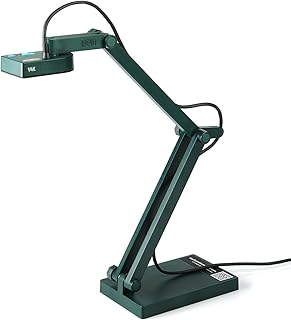 IPEVO V4K — 8 MP USB document cameraPlug-and-play visualizer: scan a physical QR or a document from your computer.affiliateSee on Amazon